Help
Frequently asked questions about ZipVault.
Getting Started
How do I create an archive?
-
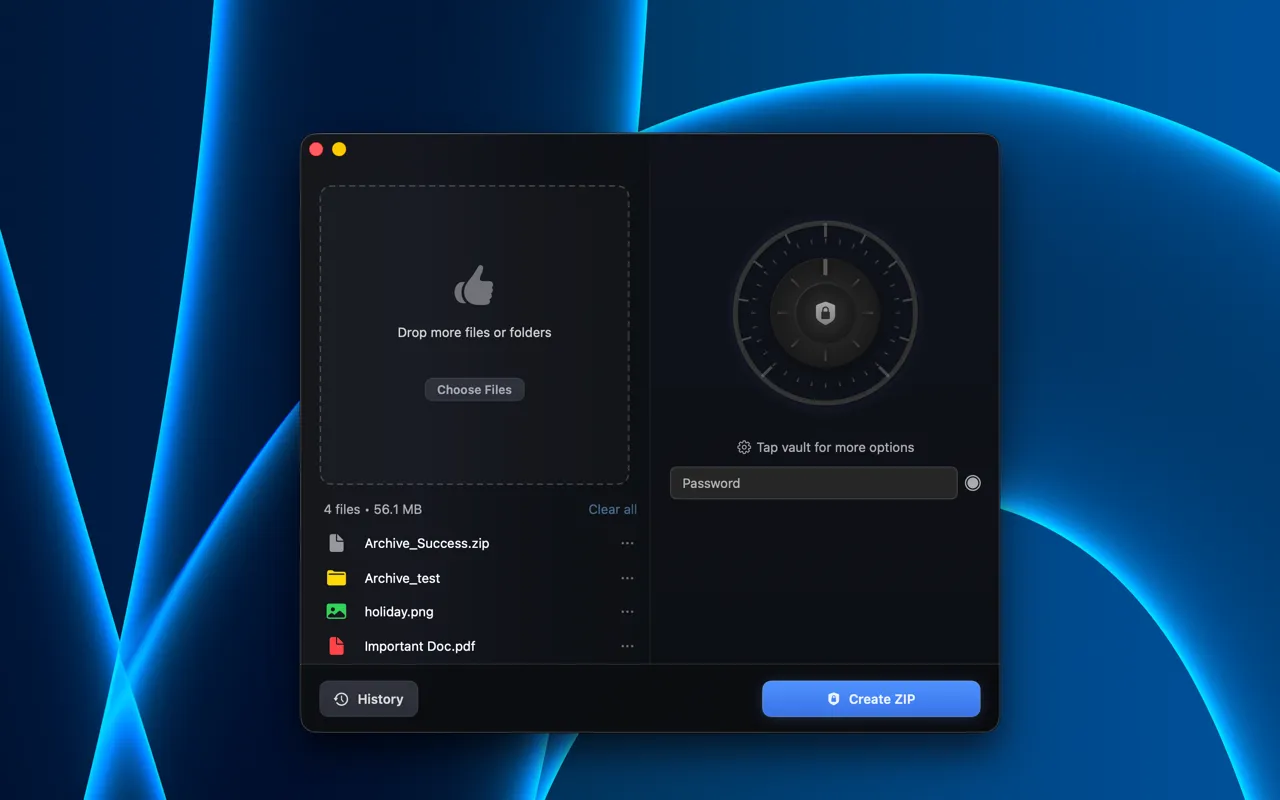
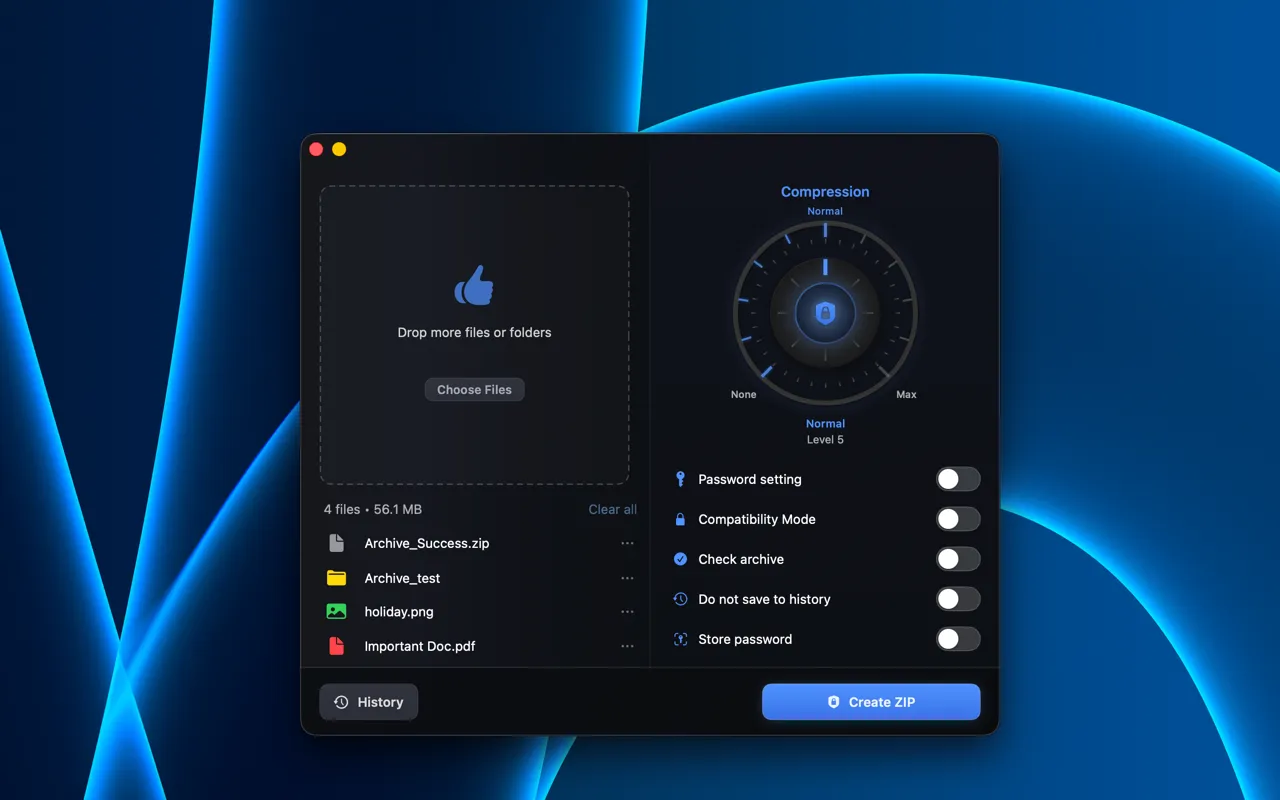
Drag files or folders onto the drop zone, or click Choose Files.
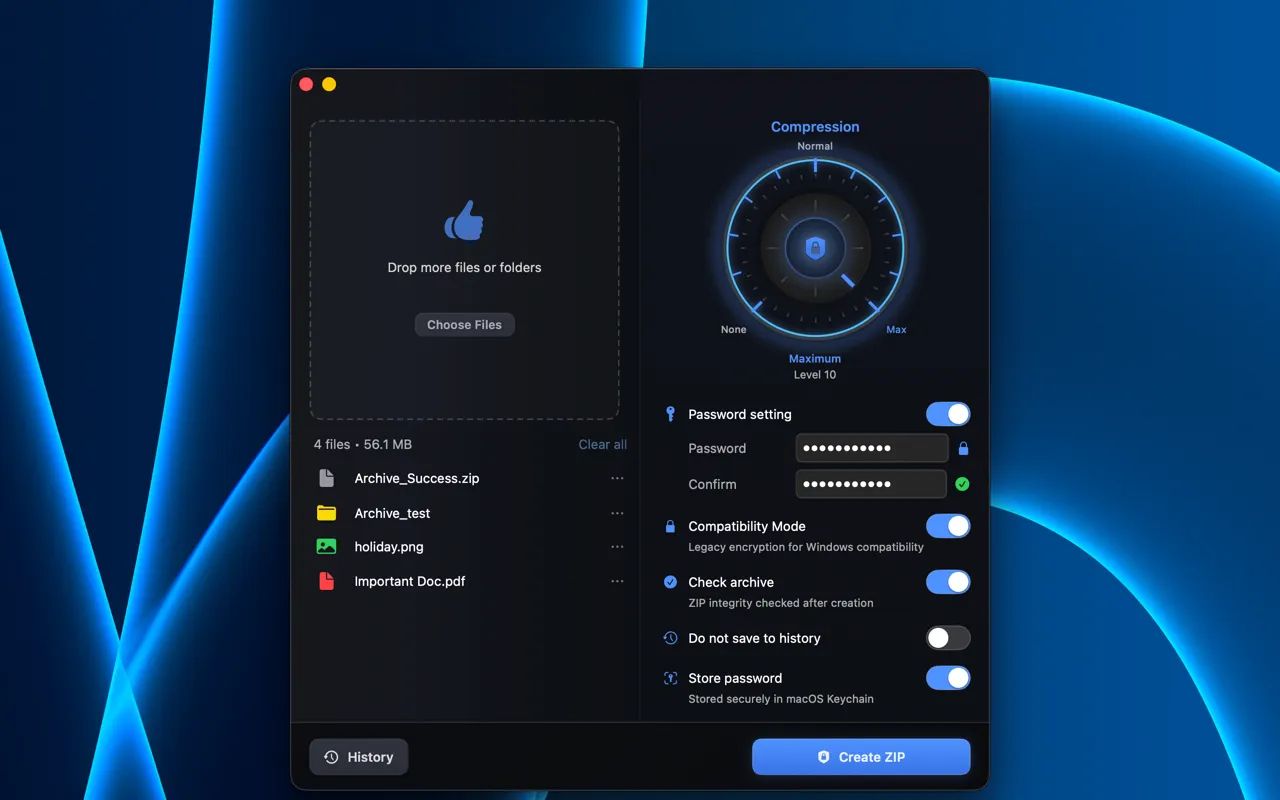
Adjust compression and password settings on the right panel.
-
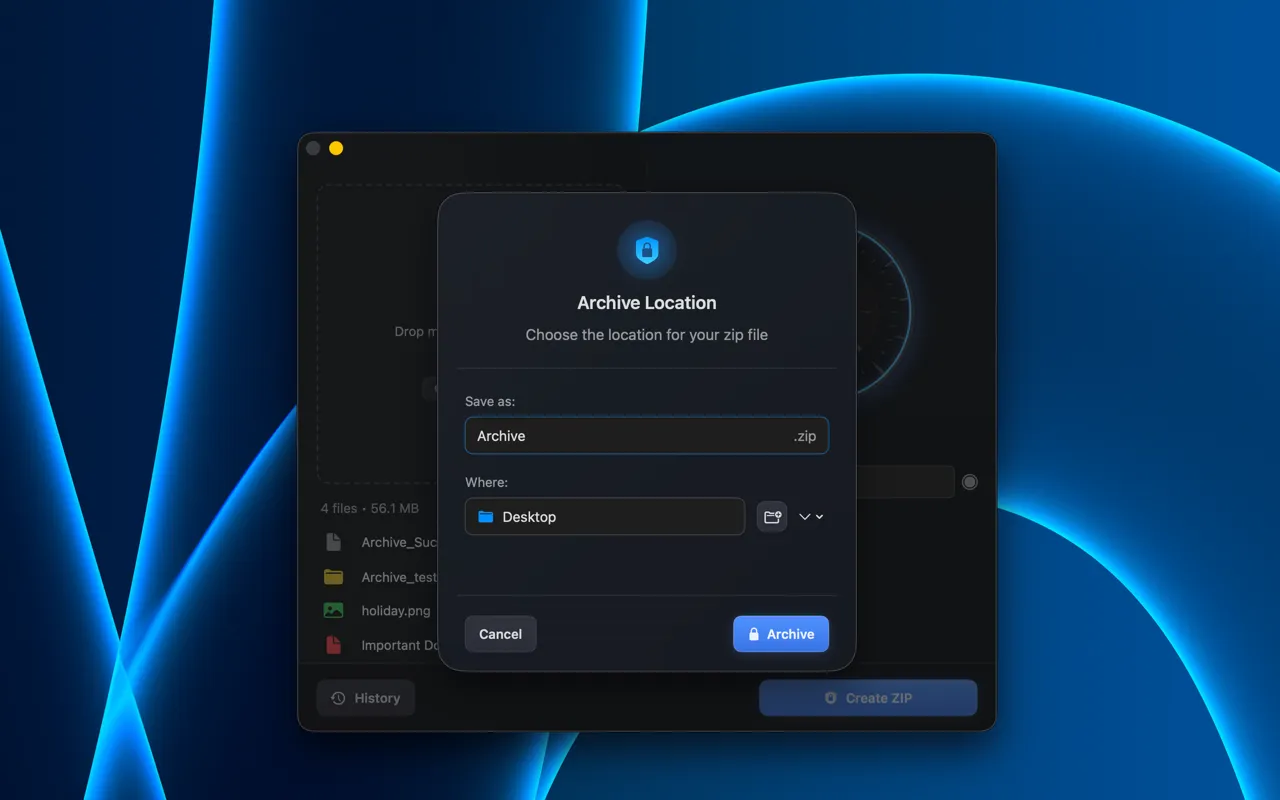
Click Create ZIP, then pick a name and save location.
-
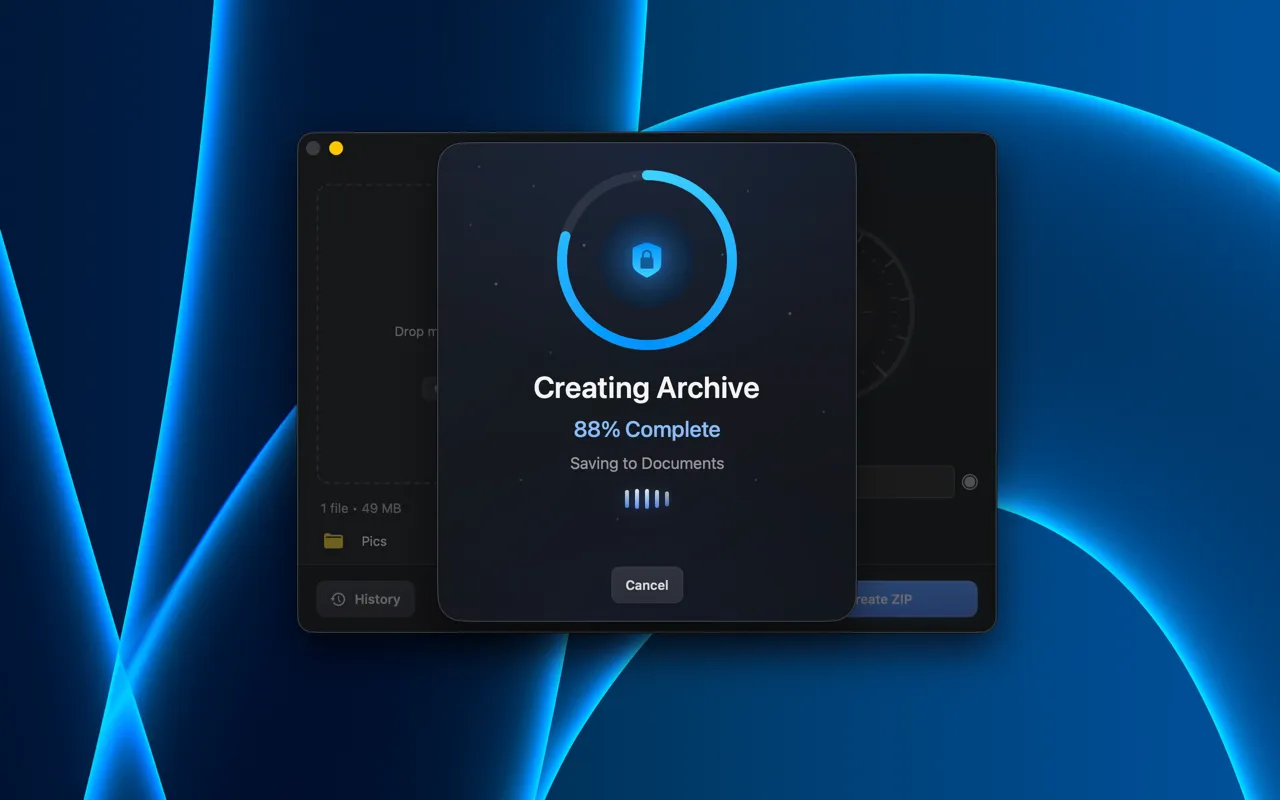
ZipVault compresses and encrypts your files.
-
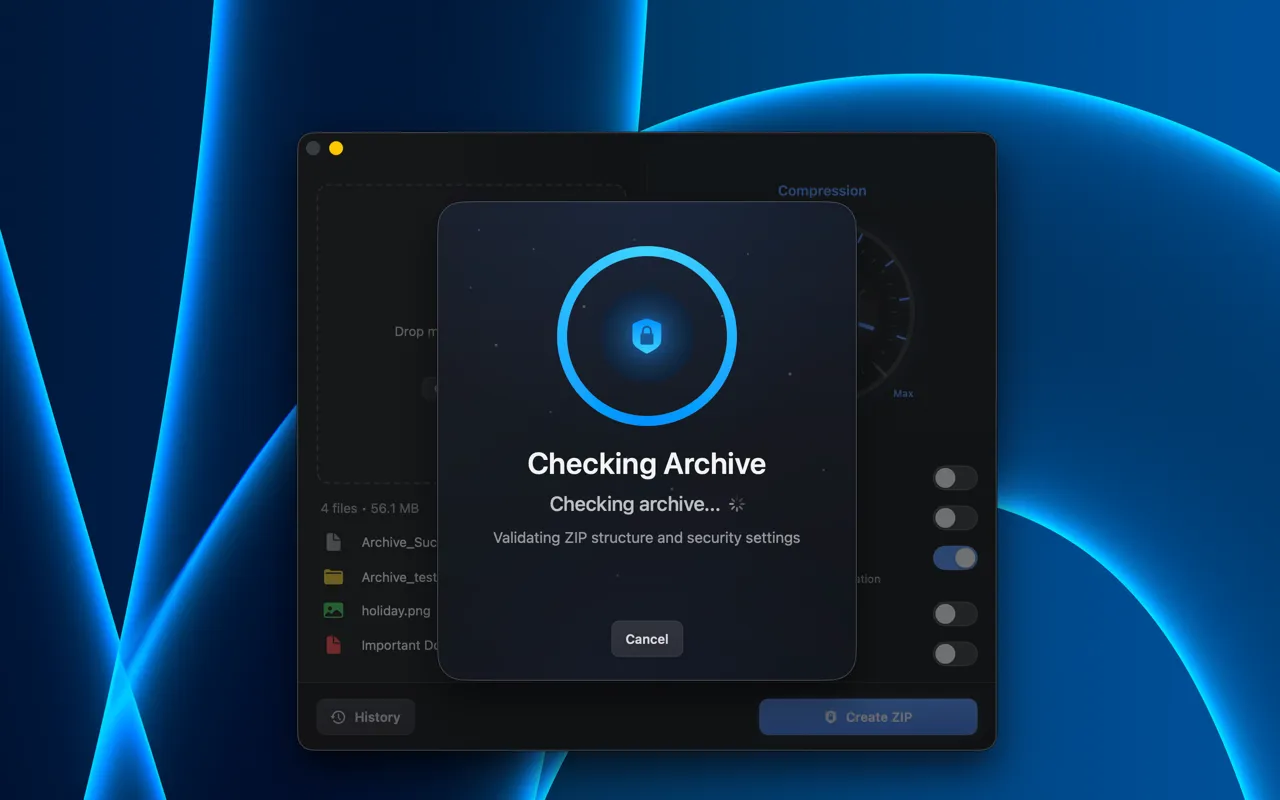
If Check archive is enabled, validation runs automatically.
-
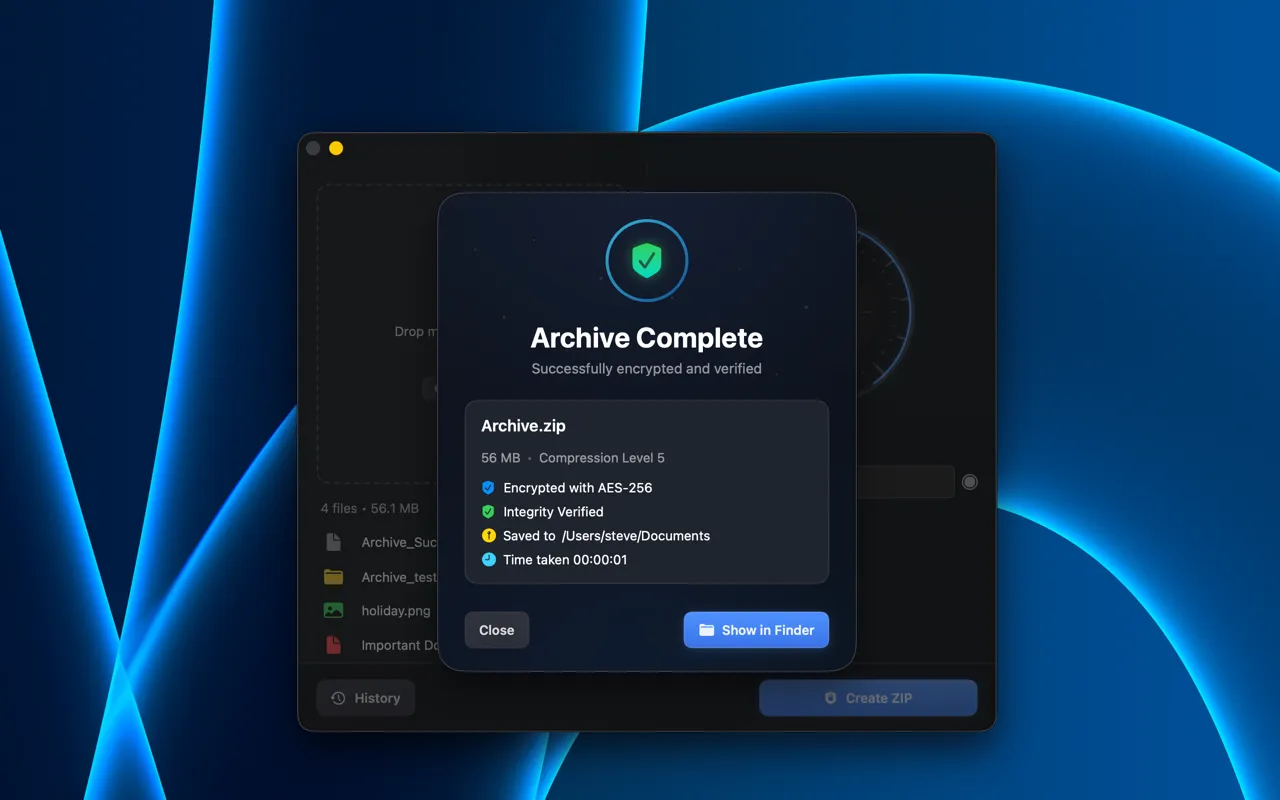
Review the summary - encryption method, file size, integrity status, and save location.
How do I choose where archives are saved?
When you click Create ZIP, a save dialog appears where you pick the file name and destination folder for your archive.
Passwords & Security
How does password protection work?
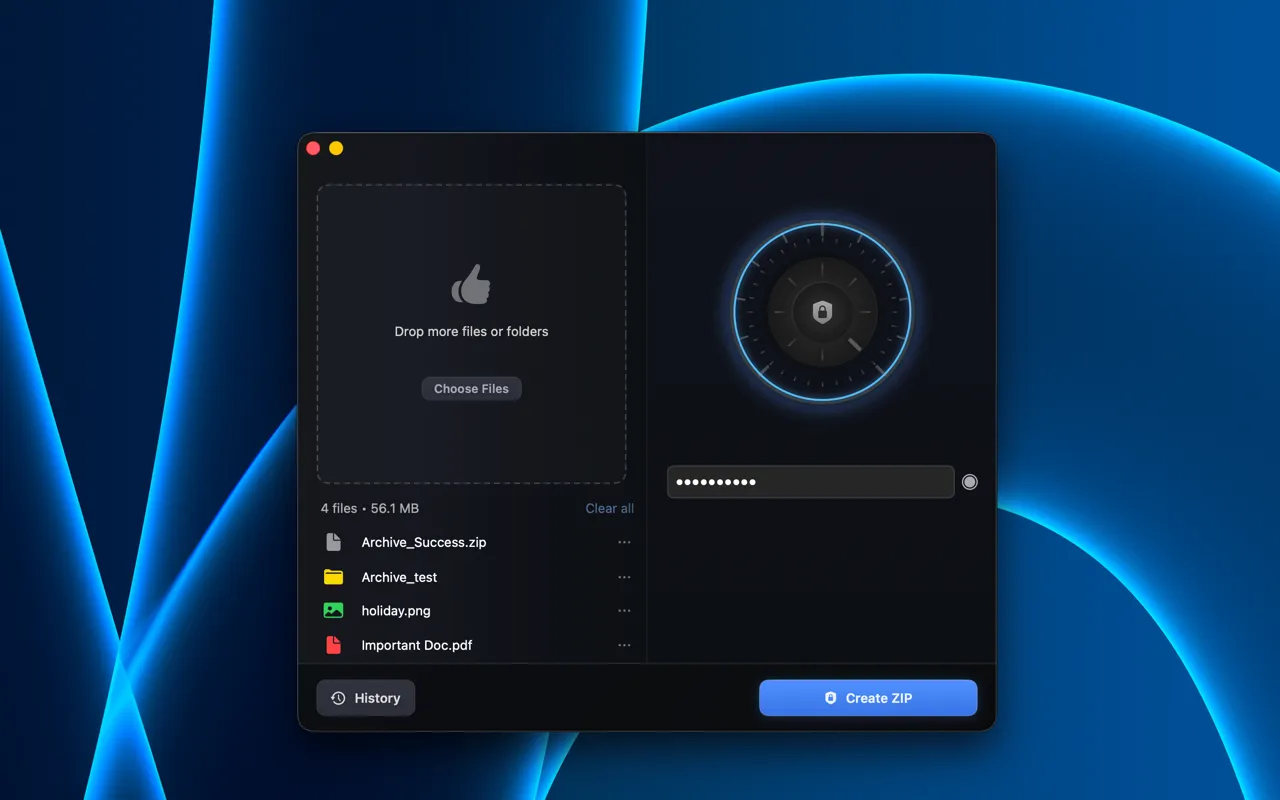
Toggle Password setting on, enter a password and confirm it. The archive will be encrypted so that extracting any file requires the password.
What is AES-256 vs Legacy Compatibility Mode?
AES-256 (default) uses strong, modern encryption. Enable Compatibility Mode to use legacy PKWARE encryption, which is weaker but compatible with older tools that don't support AES.
Should I use Compatibility Mode?
Warning
Compatibility Mode is not recommended. Only enable it if your recipient specifically needs to extract the archive using Windows Explorer's built-in ZIP handler, which does not support AES encryption.
Compatibility Mode uses PKWARE/ZipCrypto encryption, a cipher that has been cryptographically broken since 1994. Free, open-source tools can crack it in minutes by exploiting known file headers (e.g. PNG signatures, PDF headers) as a starting point for key recovery.
If your recipient uses 7-Zip, WinZip, The Unarchiver, Keka, or any modern archive tool, they can open AES-256 encrypted archives without issue. Keep Compatibility Mode off.
What information is visible in an encrypted archive?
Regardless of encryption method (AES-256 or Compatibility Mode), the ZIP format stores certain metadata outside the encrypted payload. Anyone who has the archive file can see:
- Filenames and folder structure
- File sizes (compressed and uncompressed)
- Modification timestamps
- CRC-32 checksums
Encryption protects the file contents only; not the names or structure. This is a limitation of the ZIP format itself, not of ZipVault.
For very small files (around 4 bytes or fewer), the CRC-32 checksum alone may be enough to determine the exact contents. If hiding filenames or structure is critical, consider placing the encrypted ZIP inside a second encrypted ZIP.
How does Keychain storage work?
When Store password is enabled, ZipVault saves the archive password
in your macOS Keychain. It is stored with
WhenUnlockedThisDeviceOnly accessibility —
device-local, never synced.
Can I reveal a stored password?
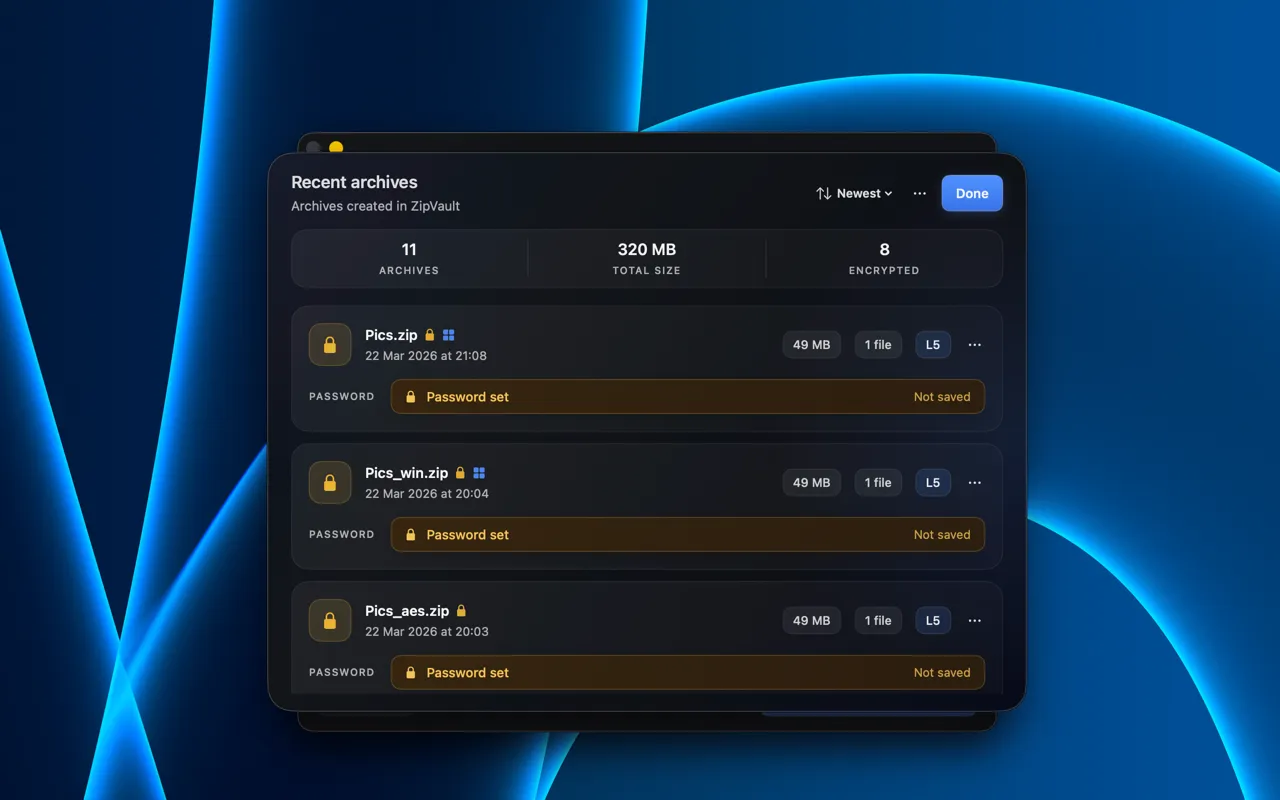
Yes, but you must first enable the Store in Keychain option when creating the archive. Once stored, open History, select an archive, and tap the reveal button. You'll be prompted for device-owner authentication (Touch ID or password) before the password is shown.
Archives
What does 'Check archive' do?
When enabled, ZipVault reads the archive after creation to verify its ZIP structure (end-of-central-directory record, central directory entries) and confirms whether password protection was applied correctly.
What compression levels are available?
The compression dial maps to ZIP levels 0 through 9. Level 0 stores files with no compression (fastest). Level 9 applies maximum compression (smallest file size). The default is level 5 ("Normal").
What archive formats are supported?
ZipVault creates .zip archives only. It's a focused tool built to do one thing well — secure ZIP archiving with strong encryption and validation.
Support for additional formats may be added in a future update.
Can ZipVault unzip archives?
No. ZipVault is focused exclusively on creating secure ZIP archives.
You don't need a separate app to extract, macOS can natively unarchive anything
ZipVault creates. Just double-click the .zip file
in Finder and enter the password when prompted.
Still have questions? Contact support